iPhone video to YouTube Shorts: why your 4K HEVC clip gets rejected and how to fix it in the browser
published
TL;DR
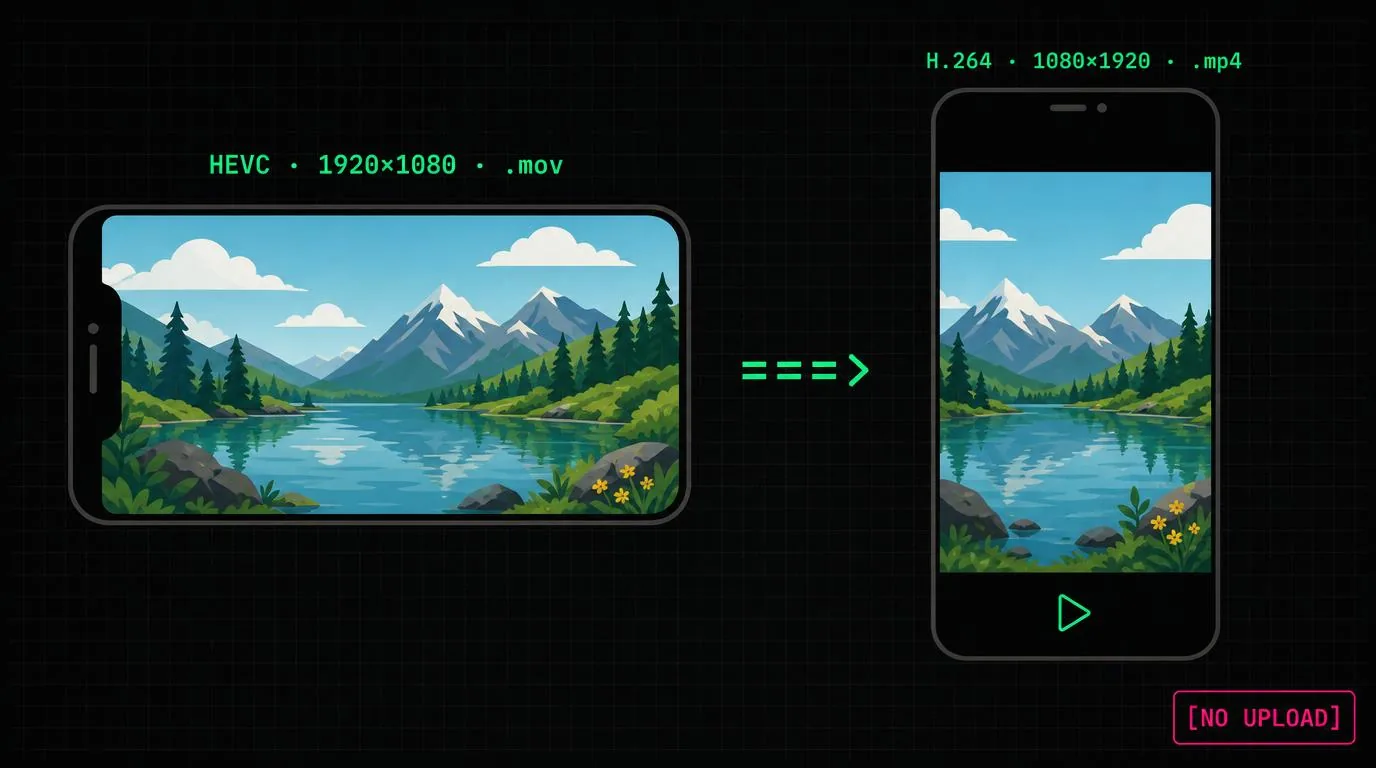
iPhones record .mov with HEVC (H.265) at 16:9. YouTube Shorts and TikTok want 9:16 vertical MP4 with H.264. To make an iPhone clip Shorts-ready: re-encode to H.264 MP4, pad or crop to 1080×1920, keep it under 60 seconds. All three steps run locally in a browser using ffmpeg.wasm — no upload, no account.
The problem
You record a clip on an iPhone, open YouTube Studio, drag it into the Shorts upload, and one of three things happens:
- Upload fails silently or stalls at 99%.
- It uploads but plays back letterboxed with huge black bars on either side.
- It uploads but YouTube classifies it as a regular long-form video, not a Short.
The cause is rarely the file being broken. It is a format mismatch in three independent dimensions:
| Dimension | iPhone default | Shorts/TikTok requirement |
|---|---|---|
| Container | .mov (QuickTime) | .mp4 |
| Video codec | HEVC (H.265) | H.264 (most reliable) |
| Aspect ratio | 16:9 (1920×1080 or 3840×2160) | 9:16 vertical (1080×1920 ideal) |
| Duration | up to recording cap | ≤60 s for Shorts, ≤3 min as of 2024 |
| Audio codec | AAC (compatible) | AAC |
The audio is usually fine. The container and codec choices break older upload pipelines and some browsers’ preview players. The aspect ratio is what makes YouTube decide whether a clip is a Short or not — the Shorts upload docs say the system looks for vertical or square framing.
Why HEVC trips uploads
Apple has shipped HEVC as the default capture format on iPhone since iOS 11 (2017). It produces files roughly half the size of H.264 at the same visual quality. The Wikipedia overview of HEVC covers the format in detail.
Three things still go wrong with it in 2026:
- Patent licensing. HEVC has a famously messy patent pool. Some platforms transcode HEVC server-side before publishing; others reject it outright to avoid the licensing surface. Browsers vary in playback support.
- Preview encoders. Browser-based upload widgets often try to draw a thumbnail or pre-validate the file. If the in-browser decoder cannot read HEVC (Safari handles it, Chrome and Firefox historically did not without OS-level codecs), the widget stalls.
- Editing tools. Many web editors will not accept HEVC inputs, so even if YouTube would have taken it, the tool you use to crop or shorten the clip will not.
H.264 (AVC) is the safe choice for “upload this to anything.” It is older, larger, and universally accepted.
The 9:16 mismatch
A 16:9 iPhone landscape clip pasted into a 9:16 Shorts player has two reasonable outcomes:
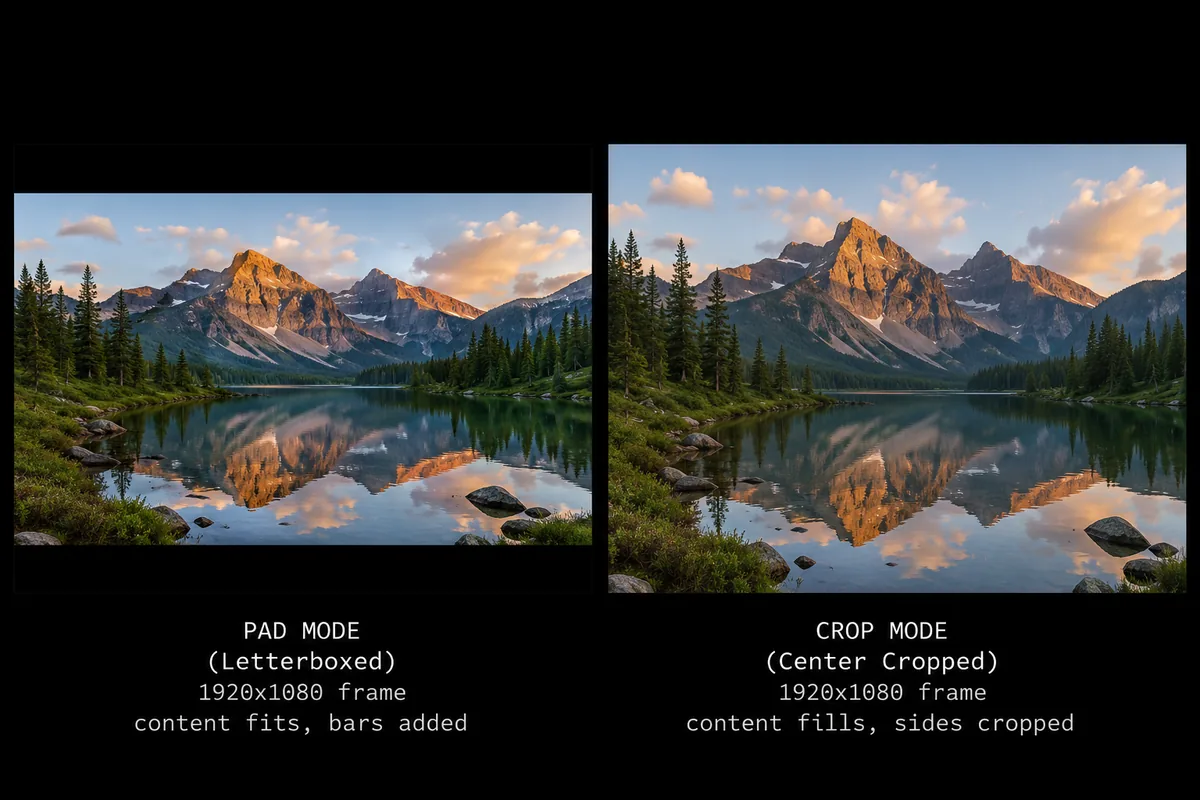
- Pad (letterbox). Keep the whole frame, add black bars on top and bottom. Nothing is cropped, but the subject is small.
- Crop (center-cut). Throw away the left and right edges, fill the 9:16 frame. Subject is large, but anything off-center is lost.
YouTube and TikTok will not pick for you. If you upload a 16:9 file as-is, you usually get letterboxing, and the algorithm may not recognize it as a Short at all. You want to produce the 1080×1920 file yourself.
Vertical footage you actually recorded by holding the phone upright is already 9:16 (1080×1920 for 1080p, 2160×3840 for 4K). For those, the only conversion needed is codec/container — no padding or cropping.
The fix, three steps, all in the browser
The reason for staying in the browser: the source clip often contains location metadata, faces, and audio you do not want sitting on someone else’s server. ffmpeg compiled to WebAssembly runs the same encoding pipeline locally. The trade-off is speed — browser ffmpeg is single-threaded by default and runs on whatever CPU you have. For a 30-second 4K HEVC clip, expect single-digit minutes on a modern laptop, longer on phones. (See the companion post on ffmpeg.wasm browser video for the performance details.)
The three steps:
1. Trim to ≤60 seconds
YouTube Shorts caps at 60 seconds for the short-form treatment (some accounts get 3 min as of mid-2024 per the Shorts help docs, but 60 is the safe target if you want guaranteed Shorts placement). Use the video splitter & joiner on this site to cut the clip, or to join several short clips into one.
2. Compress to H.264 MP4
Re-encode HEVC → H.264 in an MP4 container. This usually also shrinks the file enough to upload comfortably over a phone connection. The video compressor does the codec swap as a side effect of compression — three quality presets, optional resolution cap.
3. Convert to 1080×1920 vertical
Use the YouTube Shorts & TikTok converter to remap a 16:9 clip to 9:16. Pick pad to keep the whole frame with black bars, or crop to center-cut. The output is exactly 1080×1920 H.264 MP4 — the format YouTube, TikTok, and Instagram Reels all accept without re-transcoding.
If the source is already vertical (you recorded portrait), skip step 3 — the compressor’s output is already Shorts-ready as long as the dimensions are 1080×1920 or a 9:16 multiple.
Doing it in one shot from the command line
For people who already have ffmpeg installed locally and want to skip the browser path entirely:
# HEVC iPhone .mov → H.264 1080x1920 Shorts-ready .mp4, padded
ffmpeg -i input.mov \
  -t 60 \
  -vf "scale=1080:1920:force_original_aspect_ratio=decrease,pad=1080:1920:(ow-iw)/2:(oh-ih)/2:color=black" \
  -c:v libx264 -preset medium -crf 23 \
  -c:a aac -b:a 128k \
  -movflags +faststart \
  output.mp4
For center-crop instead of pad, swap the -vf filter:
-vf "crop=ih*9/16:ih,scale=1080:1920"The browser tools wrap exactly this kind of filter graph behind a UI. No installation, but slower than native ffmpeg.
Caveats
- HDR. iPhone Dolby Vision footage looks crushed when transcoded to SDR H.264 without tone-mapping. The browser tools currently target SDR output. If you shot in Dolby Vision and care about the highlights, do the conversion in a desktop editor with HDR-aware tone-mapping.
- Variable frame rate. iPhone clips are often recorded with variable frame rate (VFR). Most platforms accept VFR, but a few editing pipelines stutter on it. Forcing constant frame rate is
-r 30(or 60) in the ffmpeg command above. - Audio sync. Long clips re-encoded with the browser tools can drift a few hundred milliseconds against audio if you use the trim step in tandem with the codec swap. If you notice it, do the codec swap first, then trim.
- File size limits. YouTube allows large uploads, but mobile data caps make compression worth doing regardless. The compressor’s “balanced” preset typically yields a Shorts-ready clip in the tens of MB.
References
- YouTube Shorts upload requirements — Google support
- HEVC (H.265) — Wikipedia, format and licensing overview
- Advanced Video Coding (H.264) — Wikipedia
- ffmpeg.wasm — WebAssembly port used by the browser tools
- ffmpeg — upstream project for the desktop command shown above